
Scroll-triggered animations are advanced web design techniques that allow you to create dynamic and modern websites. This tutorial focuses on how to create an image rotation effect during page scrolling, an effective method to attract users' attention and improve the browsing experience.
This technique is particularly useful for web designers, front-end developers, and anyone who wants to enhance their web animation skills. The effect can be applied to images, products, logos, or other graphic elements within a Hero Section or a landing page.
To implement this animation, we will use only HTML, CSS, and JavaScript, the fundamental languages for structuring, styling, and animating web page elements.
- HTML: to create the page structure and define the elements involved in the animation.
- CSS: to center the image and define the dimensions of the scroll area.
- JavaScript: to link the image rotation to the scroll position.
By the end of this guide, you will have an image that progressively rotates as the user scrolls the page, creating a visually appealing and modern effect.
Prerequisites
- Hardware: A computer with internet access
- Software: A code editor (e.g., Visual Studio Code, Sublime Text)
- Knowledge: Basics of HTML, CSS, and JavaScript
PROCEDURE: Creating an Image that Rotates During Scroll
- HTML for the page structure
- CSS for styling and positioning elements
Step 1: Creating the HTML Structure
Start by creating a section tall enough to clearly see the animation during scrolling.
- Create an HTML file and paste the following code:
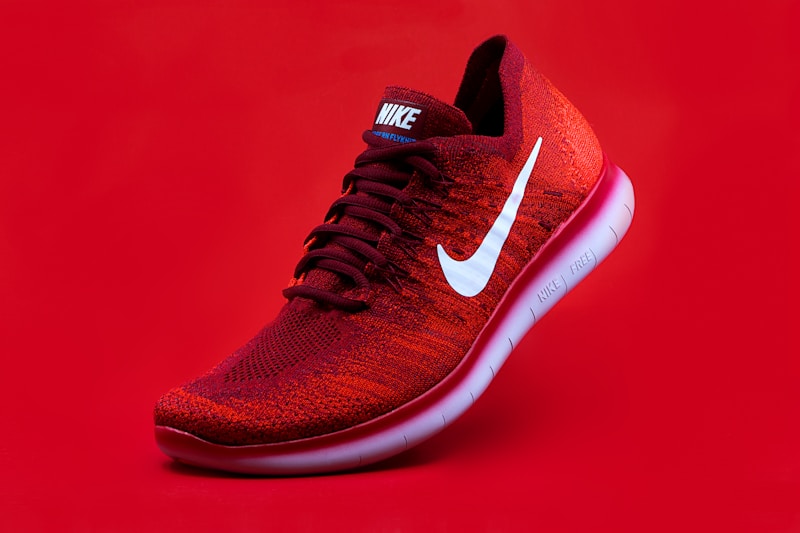
Keep scrolling
The image rotates based on the scroll position.
Lorem ipsum dolor sit amet, consectetur adipiscing elit.
Step 2: Adding CSS Styles
Define the dimensions of the scroll area and center the image on the web page.
 { margin: 0; padding: 0; box-sizing: border-box;
}
body { font-family: Arial, sans-serif; background: #111; color: white;
}
.scroll-section { height: 200vh; display: flex; justify-content: center; align-items: flex-start; padding-top: 150px;
}
.image-wrapper { position: sticky; top: 30vh;
}
.scroll-image { width: 300px; height: 300px; object-fit: contain; display: block; transform: rotate(0deg); transition: none;
}
.content { min-height: 100vh; padding: 100px 10%; background: white; color: #222;
}
.content h2 { margin-bottom: 30px; font-size: 45px;
}
.content p { margin-bottom: 25px; line-height: 1.8;
}
Step 3: Adding JavaScript Code
const image = document.querySelector(".scroll-image");
window.addEventListener("scroll", () => { const scroll = window.scrollY; const rotation = scroll  0.5; image.style.transform = `rotate(${rotation}deg)`;
});
Step 4: Customizing the Rotation Speed
Modify the image rotation speed by changing the value used in the calculation.
- For a faster rotation, use:
const rotation = scroll 1;
const rotation = scroll 0.2;
Verification and Troubleshooting
After implementing the scroll-triggered rotation effect, it is important to verify that it works correctly and resolve any issues.
How to Test if It Works
- Rotation Check: Scroll the page and observe if the image rotates progressively. The image should start with a 0-degree rotation and increase as you scroll the page.
- Position Check: Ensure the image remains fixed in the specified position (top: 30vh) during scrolling.
- Testing on Different Devices: Verify that the effect works correctly on different devices and browsers to ensure compatibility.
What to Do if It Fails
- Rotation Issues: If the image does not rotate, check that the JavaScript code is correctly linked to the HTML element and that the scroll event listener is active.
- Position Issues: If the image does not stay fixed during scrolling, verify that the .image-wrapper class has the property position: sticky and that the top value is set correctly.
- Size Issues: If the image does not have the correct dimensions, check that the width and height properties in the .scroll-image class are set correctly.
Now you can apply this technique to make your web projects more dynamic and modern.
- You have created an HTML structure to host the image and content.
- You have learned how to customize the rotation speed by modifying the multiplication value.
Put into practice what you have learned and experiment with different images and rotation speeds to achieve the desired effect.
Editorial Note and Disclaimer
The guides and content published on GoYou are the result of independent research and analysis activities, for informational, educational, and in-depth purposes.
GoYou does not constitute a journalistic publication or an editorial product pursuant to Law No. 62/2001 and does not provide real-time information.
The GoYou project does not provide professional, technical, legal, or financial advice and disclaims any liability for the misuse of the information published.
In the Crypto sector, every investment involves risks: readers are invited to always inform themselves autonomously before making any decision.